Toolbar Options
The Actions dropdown and the toolbar of the Manage Credits and Enrollment screen allow you to change enrollment and credit data for individuals or groups of users.
Actions Dropdown
Listed below are the actions that are available in the Action dropdown menu.
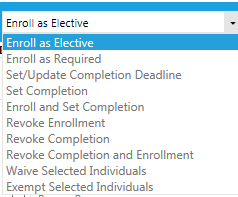
- Enroll as Elective
- This action is used to enroll a user in the selected course. The course will appear in the Elective Learning section of the user's learning plan.
- Enroll as Required
- This action is used to enroll a user in the selected course. The course will appear in the Required section of the user's learning plan. When a user is "Enrolled as Required" they are not truly part of the required audience. They will not be listed as a member of the required audience on Required reports and the Required course notifications will not be sent to them. This option is not available in all systems.
- Set/Update Completion Deadline
- This action is used to set and/or update the completion deadline of a course that a user is already enrolled in. The completion deadline will appear on the user's Development plan. It will also appear on reports Note: The Completion Deadline cannot be manually changed when it is set by a requirement at the resource/audience level (for example, by setting expiration). If you do try to change a required completion deadline, you will get a message letting you know that the deadline cannot be changed.
- Set Completion
- This action is used to grant credit to a user who does not have a "Complete" status for the course.
- Enroll and Set Completion
- This action creates an enrollment and then marks the course complete. This should only be used when the user's status is complete and another completion is being granted. Note: If the user is already enrolled and this action is used, another enrollment will be created thus creating a duplicate enrollment.
- Revoke Enrollment
- This action is used to remove the user's enrollment in the course.
- Revoke Completion
- This action is used to revoke the completion for a user who was previously granted credit for completing the course. The user will remain enrolled in the course.
- Revoke Completion and Enrollment
- This action is used to revoke the completion for a user who was previously granted credit. This action will also remove the user's enrollment in the course.
- Waive Selected Individuals
- This action is used to waive a user from a course requirement. A waive is visible on the user's Learning History. If used for a resource that has an expiration, this will only waive the user from the current requirement; the user will still need to complete the training before the next scheduled expiration date.
- Exempt Selected Individuals
- This action is used to exempt a user from a course requirement. An exempt may or may not be visible on the user's Learning History based on your system's configuration. If used for a resource that has an expiration, the user will never have to take the course regardless of expiration date.
Toolbar Options
In addition to the actions dropdown, which is specific to the View by Course screen, there is the toolbar that can be accessed at any time. Each item on this top navigation bar is defined below.

- Send Notification
- Check this box if you would like for the user(s) to receive an email notifying them of their new enrollment. If this box is left unchecked, no notification will be sent. Note: An enrollment notification is the only notification type that can be sent from this screen.
- Save
- Click this to complete the selected action.
- Set Filters
- Launches the Filters and Options pop-up. Use this when you need to change the course, audience, or switch to View by Person.
- Set Defaults
- Launches the Defaults pop-up. Use this to set your completion date or completion deadline, depending on the selected action.
- Count Audience
- A quick way to see how many people are in the selected audience.
- Upload Certification
- Use this option to attach a completion certification in the form of a PDF file, to a user's learning plan once they have completed the course or curriculum. This is different from the Certificates of Completion that are associated with a resource through the Maintain Learning Resources screen. Depending on configuration, a user's history can display both a Certificate of Completion and this Completion Certification.
Upload Certification
A completion certification cannot be deleted once attached to a specific user's completion. If it needs to be deleted, the completion record must be revoked. Once the completion is dropped, the certification will be deleted. The administrator will then need to reset the completion so that course history is not lost.
To upload a completion certification, select a user with the checkboxes at the left of their name and click on the certification button.
The upload box will display, prompting you to select a certificate file to upload. The file should be in a PDF format.
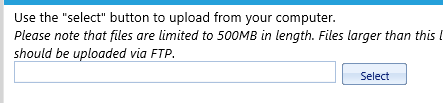
Once the file has been uploaded a magnifying glass will now appear next to the certification icon in the user's data row. If desired, click on the magnifying glass to view the document.

If needed, additional documents can be uploaded using the same steps. A list of all uploaded documents will display when the magnifying glass is selected.
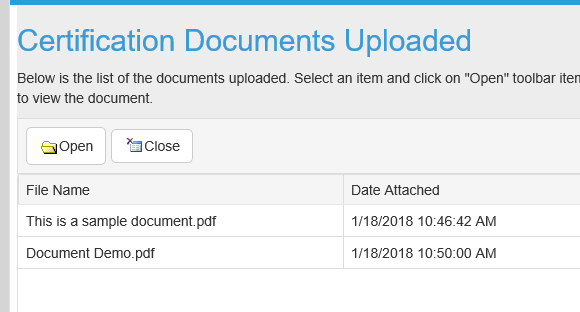
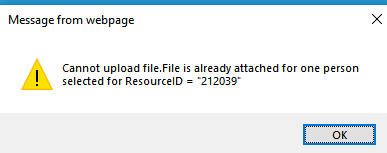
Note: The same certification document cannot be used for multiple users. If you try to upload a certification document that has already been used, the system will stop you.
Related
Manage Credit and Enrollment Screen
The Results Grid
Enroll a Group
Set Completion
Set Completion vs Enroll and Set Completion